
Submission Guide
This guide shows how to submit a manuscript to the Vertex International Journal of Law, Management & Social Sciences (VIJLMSS): first the whole workflow at a glance, from the first form to publication, then every screen of the submission system with annotated screenshots.
Before you start: read the Author Guidelines, prepare your manuscript with the official template (Part A title page and Part B anonymised manuscript), and register or log in to an author account.
Submission workflow at a glance
This is the actual path every manuscript follows in the journal’s submission system, from the first form to publication. Select a numbered step to jump to its annotated screenshot.
You submit — about 15–30 minutes, progress saved automatically
- 0StartTitle, checklist, declarations, signature
- 1DetailsTitle, keywords, abstract, references
- 2Upload FilesPart A title page, Part B manuscript
- 3ContributorsEvery author, in order
- 4For the EditorsSubjects, disciplines, data statement
- 5Reviewer SuggestionsOptional
- 6Review & SubmitCheck, confirm copyright, submit
Automatic: when you press Begin Submission your signed consent PDF is created and the manuscript template is emailed to you. When you press Submit you receive a confirmation email and the editors are notified.
Then the journal takes over
- 7Editorial triageScope, anonymisation, ethics · 3–5 days
- 8Double-anonymous reviewTwo or more reviewers · 4–6 weeks
- 9DecisionAccept, minor or major revision, reject
- 10RevisionPoint-by-point response · 1–3 weeks per round
- 11ProductionCopyedit, typeset, proof · about 2 weeks
- 12PublicationNext bimonthly issue, open access
Automatic: a publication certificate is emailed to the authors when the article is published.
How to submit, step by step
The screenshots below were captured from a real test submission on the live system. The numbered green frames match the numbered notes under each image. Select an image to open it at full size. You need to be logged in to an author account first.
Start: title, checklist, declarations and signature
The first page collects the title and the author’s declarations. Every field marked with a red asterisk is required.
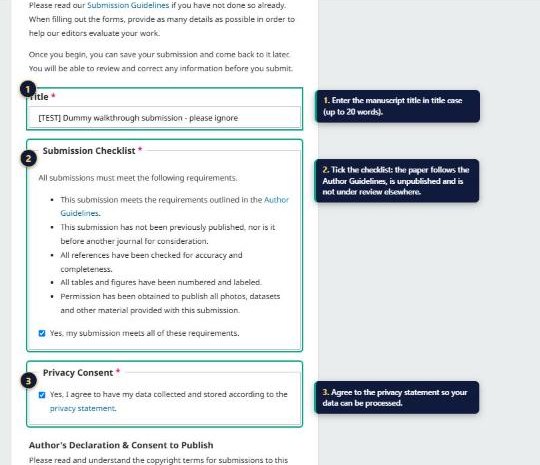
- 1Title. Enter the manuscript title in title case, no more than twenty words.
- 2Submission checklist. Tick the box to confirm the paper follows the Author Guidelines, is unpublished and is not under review elsewhere.
- 3Privacy consent. Agree to the privacy statement so your data can be processed.
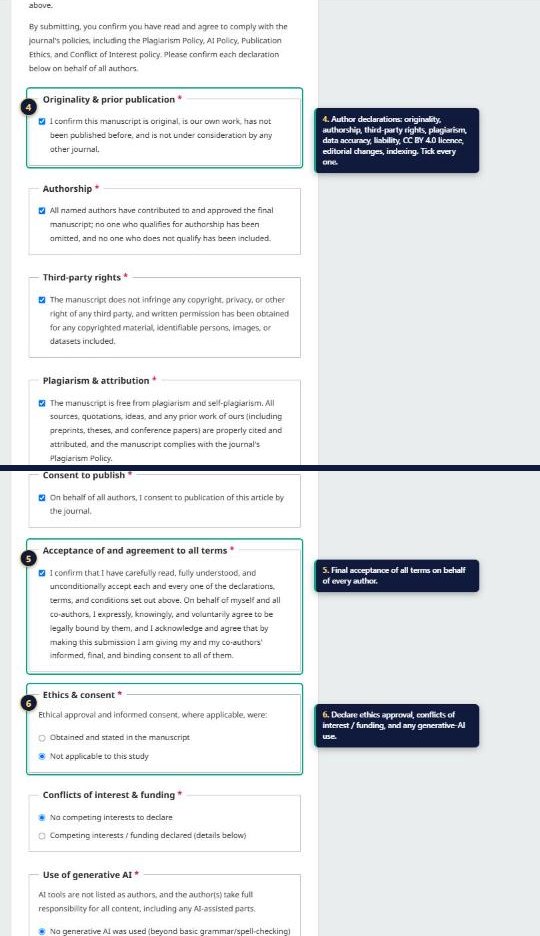
- 4Author declarations. Tick each declaration: originality, authorship, third-party rights, plagiarism, data accuracy, responsibility and liability, the CC BY 4.0 licence, editorial changes, indexing, and consent to publish.
- 5Acceptance of all terms. A final confirmation on behalf of every author.
- 6Ethics, conflicts and AI. Declare ethics approval and consent, conflicts of interest and funding, and any use of generative AI.
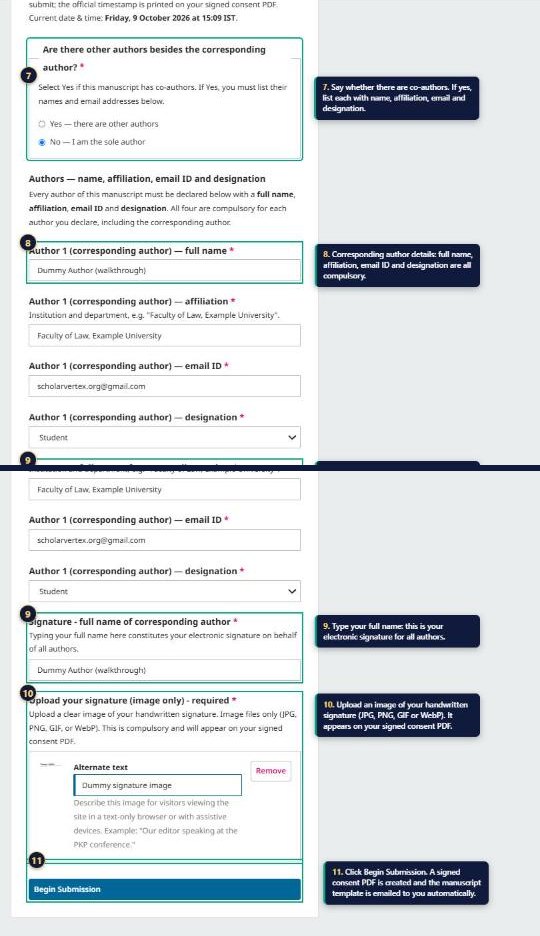
- 7Other authors. Say whether there are co-authors. If so, list each with name, affiliation, email and designation.
- 8Corresponding author. Full name, affiliation, email ID and designation are all compulsory.
- 9Typed signature. Type your full name: this is your electronic signature on behalf of all authors.
- 10Signature image. Upload an image of your handwritten signature (JPG, PNG, GIF or WebP) and add a short description for it. It appears on your signed consent PDF.
- 11Begin Submission. Your signed consent PDF is created and the manuscript template is emailed to you automatically.
Details: title, keywords, abstract and references
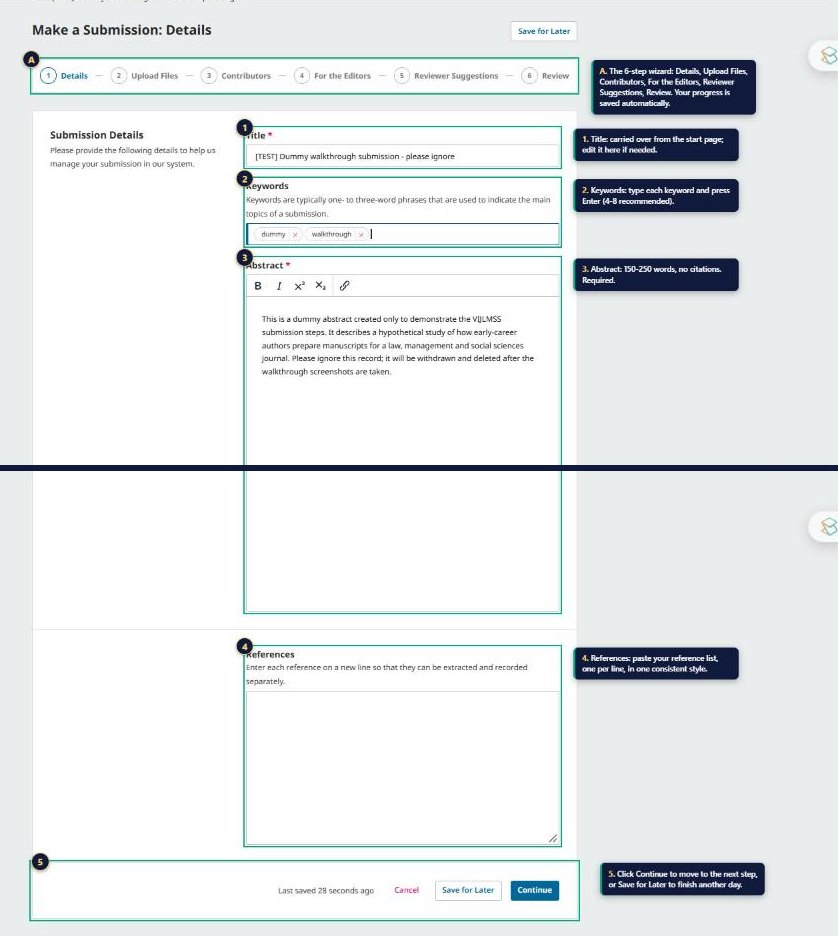
- AProgress bar. The wizard has six steps: Details, Upload Files, Contributors, For the Editors, Reviewer Suggestions and Review. Progress is saved automatically.
- 1Title. Carried over from the start page; edit it here if needed.
- 2Keywords. Type each keyword and press Enter (4–8 recommended).
- 3Abstract. 150–250 words, with no citations. Required.
- 4References. Paste your reference list, one per line, in one consistent style.
- 5Continue / Save for Later. Move to the next step, or finish another day from your dashboard.
Upload Files
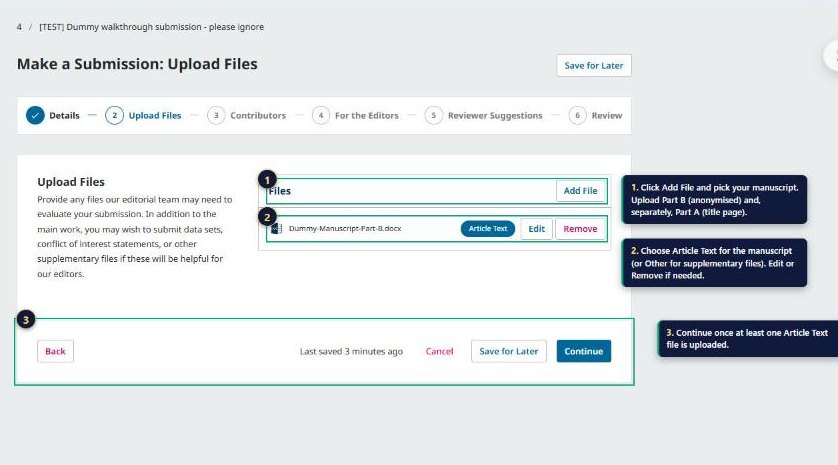
- 1Add File. Choose your manuscript file. Upload Part B (the anonymised manuscript) and, as a separate file, Part A (the title page), both made from the Word template. Data sets and supplementary files are added the same way.
- 2File type. After uploading, choose Article Text for the manuscript or Other for supplementary files. Use Edit or Remove if you need to change a file.
- 3Continue. Available once at least one Article Text file is uploaded.
Contributors
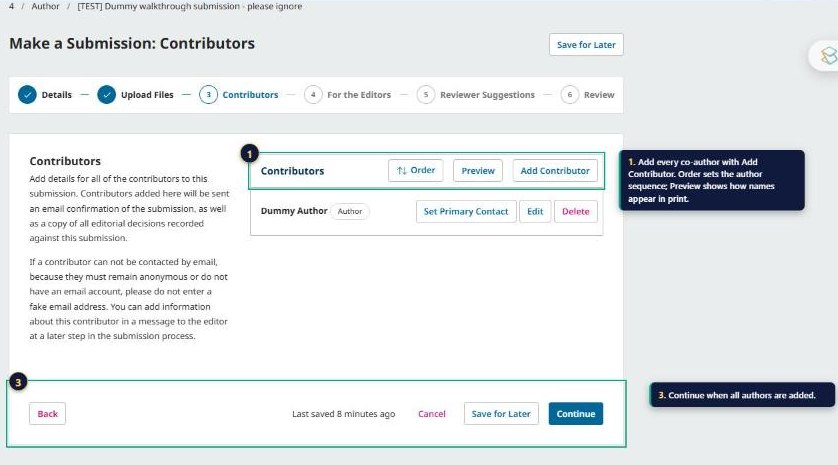
- 1Add Contributor. Add every author. Order sets the author sequence and Preview shows how names will appear in print. Each contributor can be set as the primary contact, edited or deleted.
- 3Continue. Move on once all authors are added.
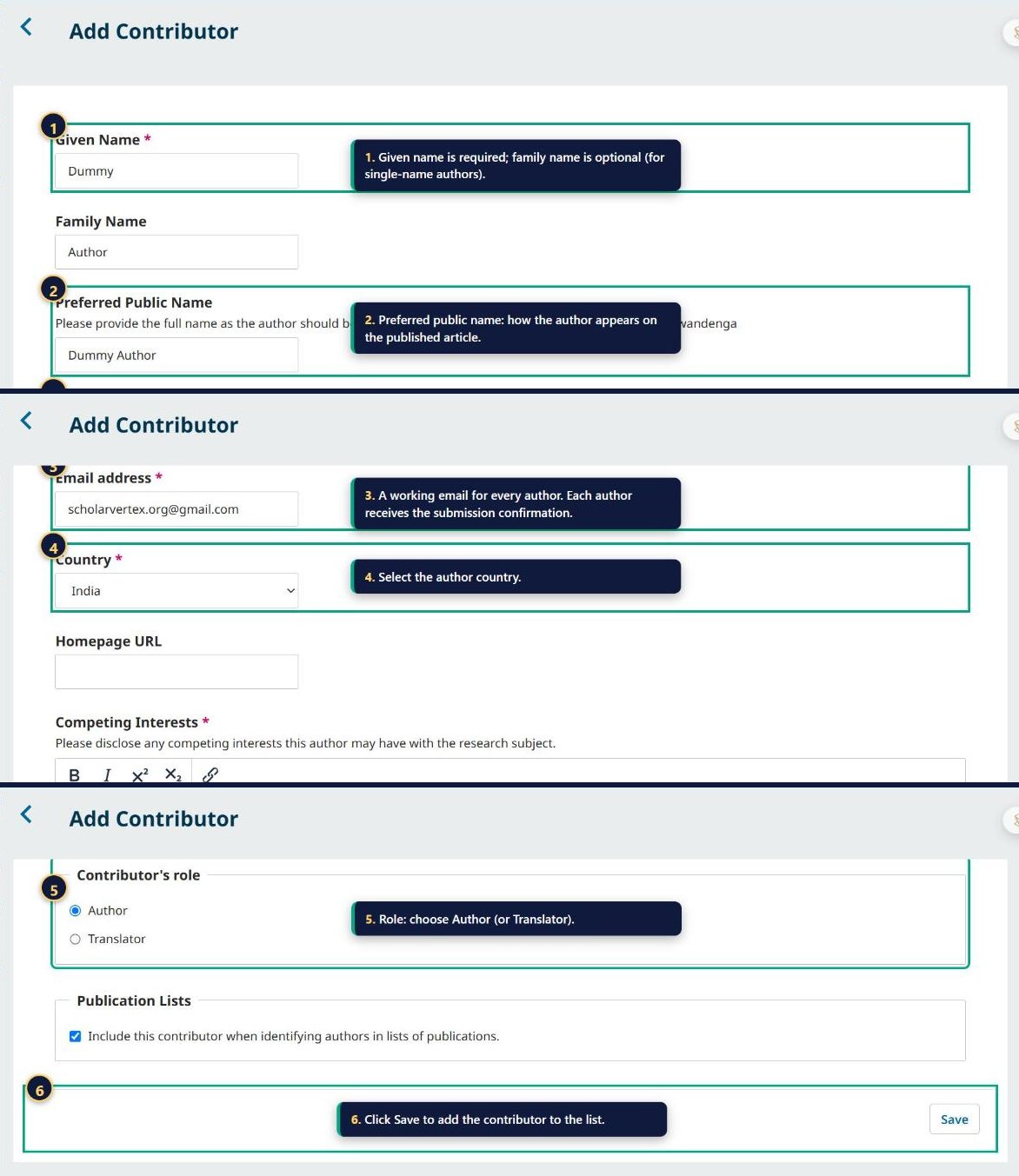
- 1Given name is required; family name is optional, for authors with a single name.
- 2Preferred public name. How the author will appear on the published article.
- 3Email. A working address for every author; each author receives the submission confirmation.
- 4Country. Select the author’s country. The panel also asks for any competing interests, which is required.
- 5Role. Choose Author (or Translator).
- 6Save. Adds the contributor to the list.
For the Editors
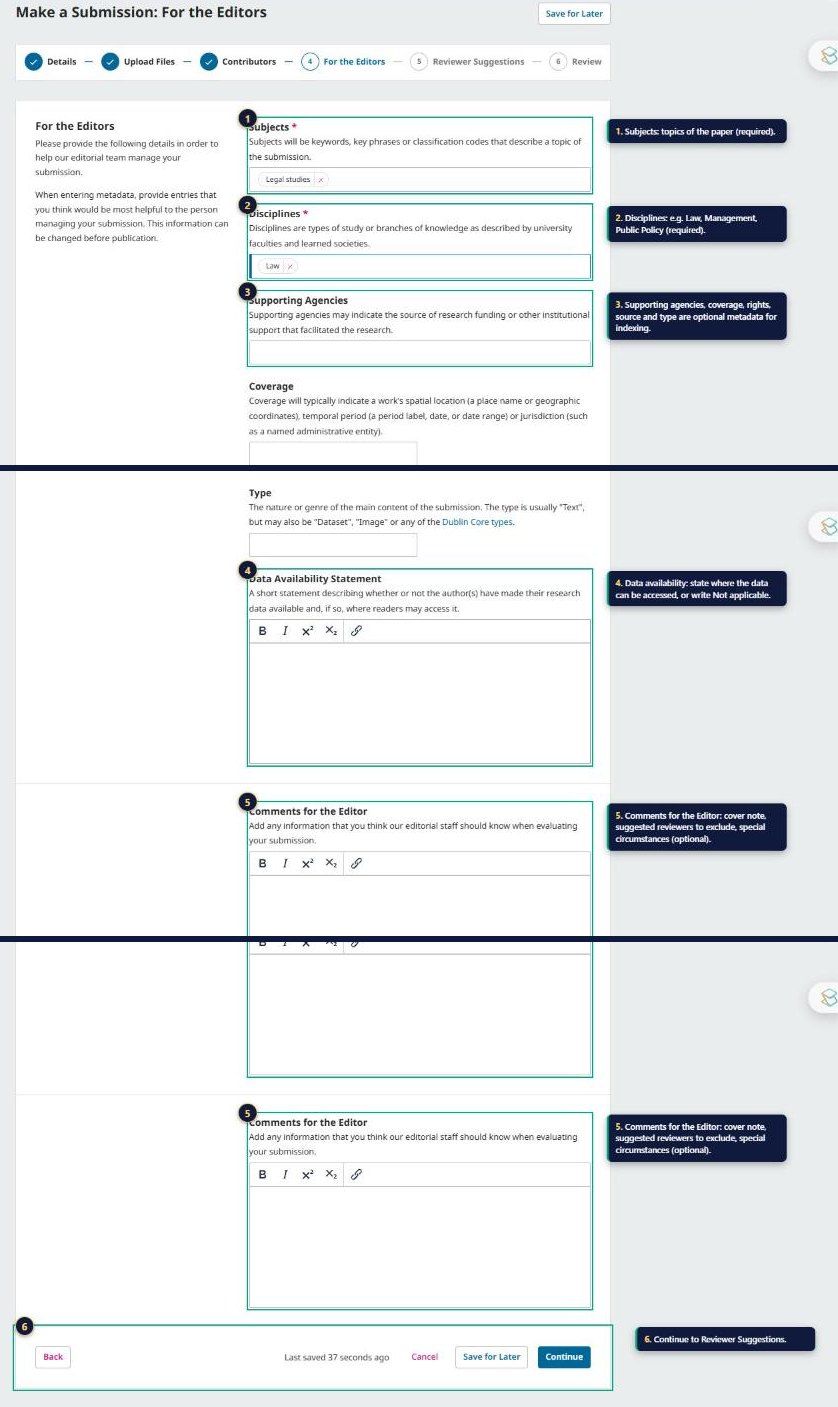
- 1Subjects. The topics of the paper. Required.
- 2Disciplines. For example Law, Management or Public Policy. Required.
- 3Optional metadata. Supporting agencies, coverage, rights, source and type help with indexing but may be left blank.
- 4Data availability. State where the data can be accessed, or write “Not applicable”.
- 5Comments for the Editor. A cover note, special circumstances or anything the editors should know (optional).
- 6Continue. Go to Reviewer Suggestions.
Reviewer Suggestions (optional)
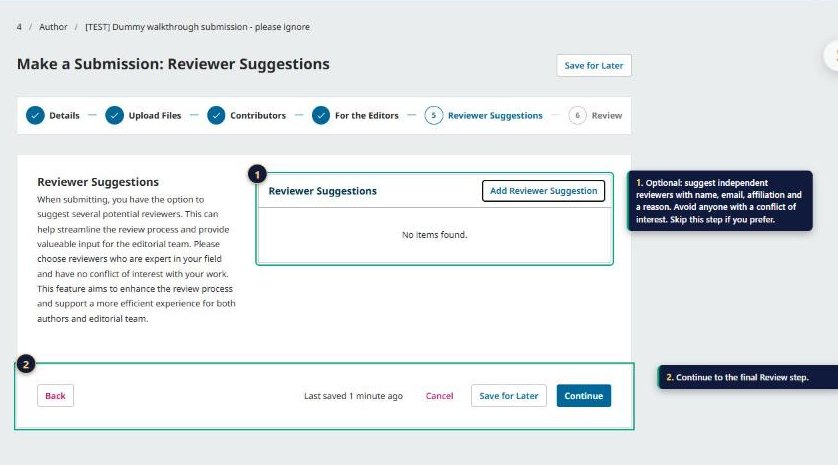
- 1Suggest reviewers. Optionally suggest independent reviewers with name, email, affiliation and a reason. Avoid anyone with a conflict of interest. You may skip this step.
- 2Continue. Move to the final Review step.
Review and Submit
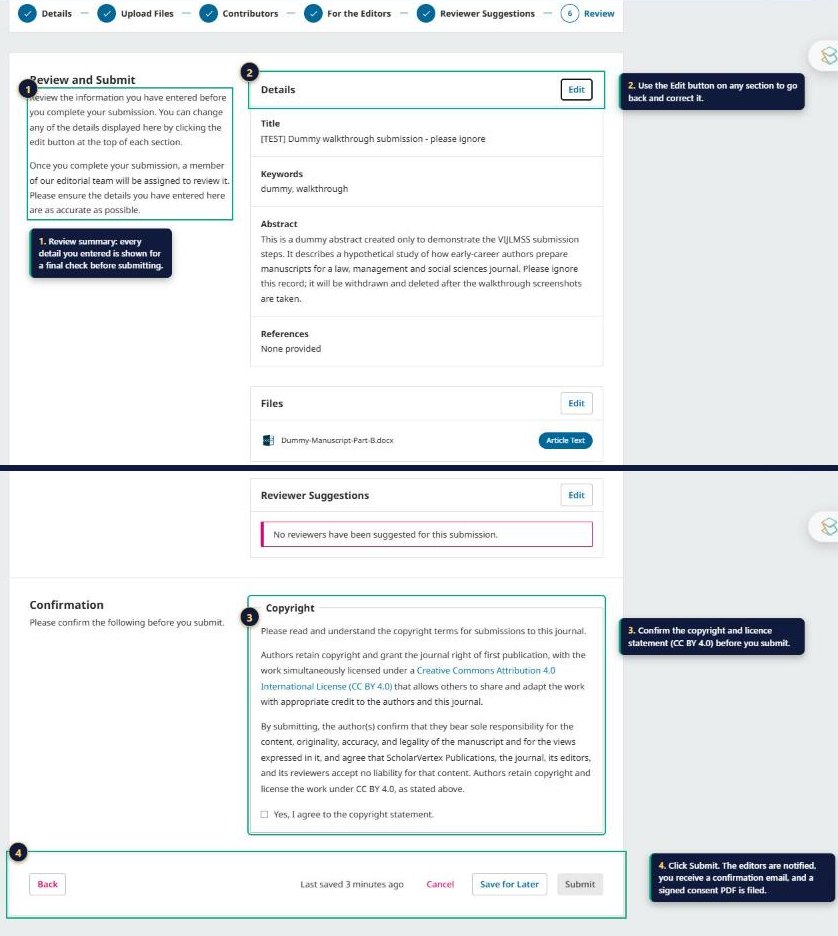
- 1Review summary. Every detail you entered is shown for a final check.
- 2Edit. Use the Edit button on any section to go back and correct it.
- 3Copyright. Confirm the copyright and licence statement (CC BY 4.0).
- 4Submit. The submission is sent to the editors and you receive a confirmation email.
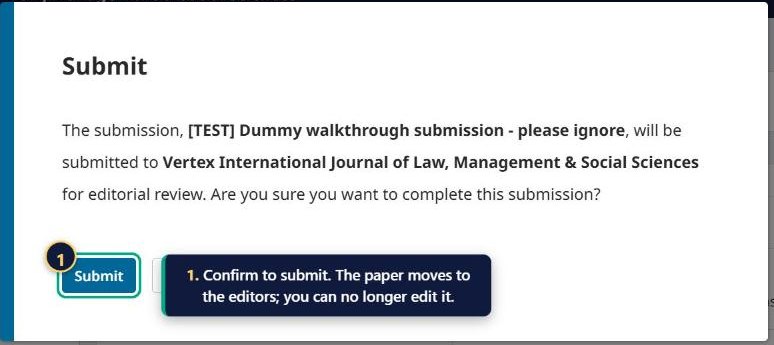
- 1Confirm. Press Submit in the dialog to complete the submission. The author can no longer edit it; the page then reads “Submission complete” and the confirmation email is sent.
After submission, follow your manuscript from the author dashboard. The editors will contact you after triage; see the workflow at the top of this section for what happens next.
